
Registering Devices for Patients
Welcome to the Mozzaz Device Registration guide! By following the steps outlined below, you will be able to confidently connect patient medical devices to their profile within the Mozzaz Portal and confirm that their data in flowing into the system.
Step 1:
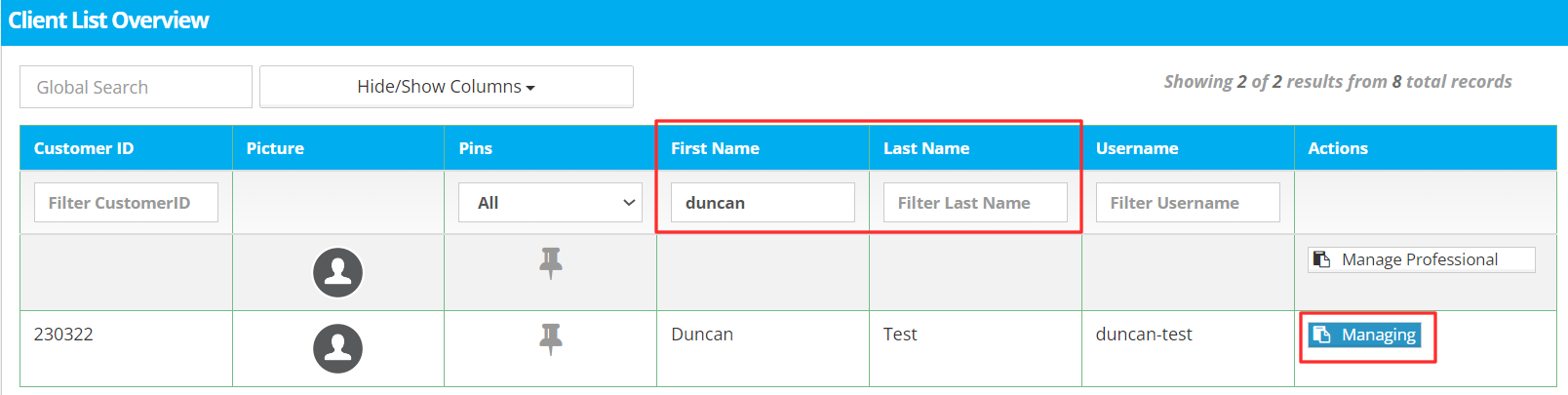
Begin by logging into the Mozzaz Care Portal with an admin account. From the top navigation-menu select the Client List module, utilizing the search functions you can filter to the specific patient you are looking to examine. When you have found the patient select Manage.
Note if it instead reads ‘managing’ you can continue to Step 2 as you are already viewing that patient within the platform.
In this example we will manage our demo account Duncan Test.
Step 2:
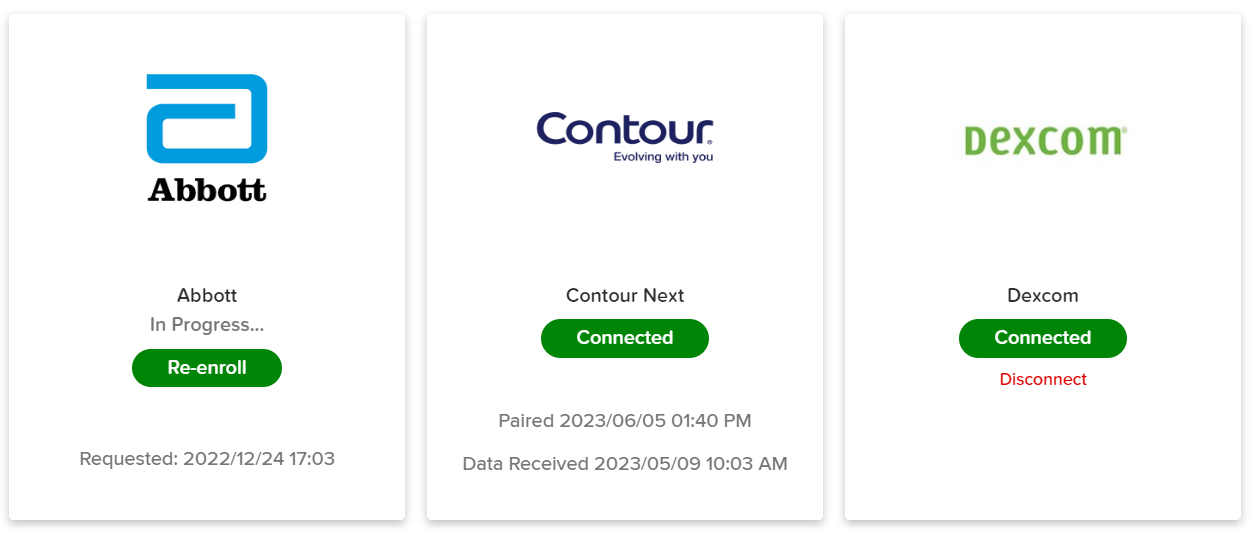
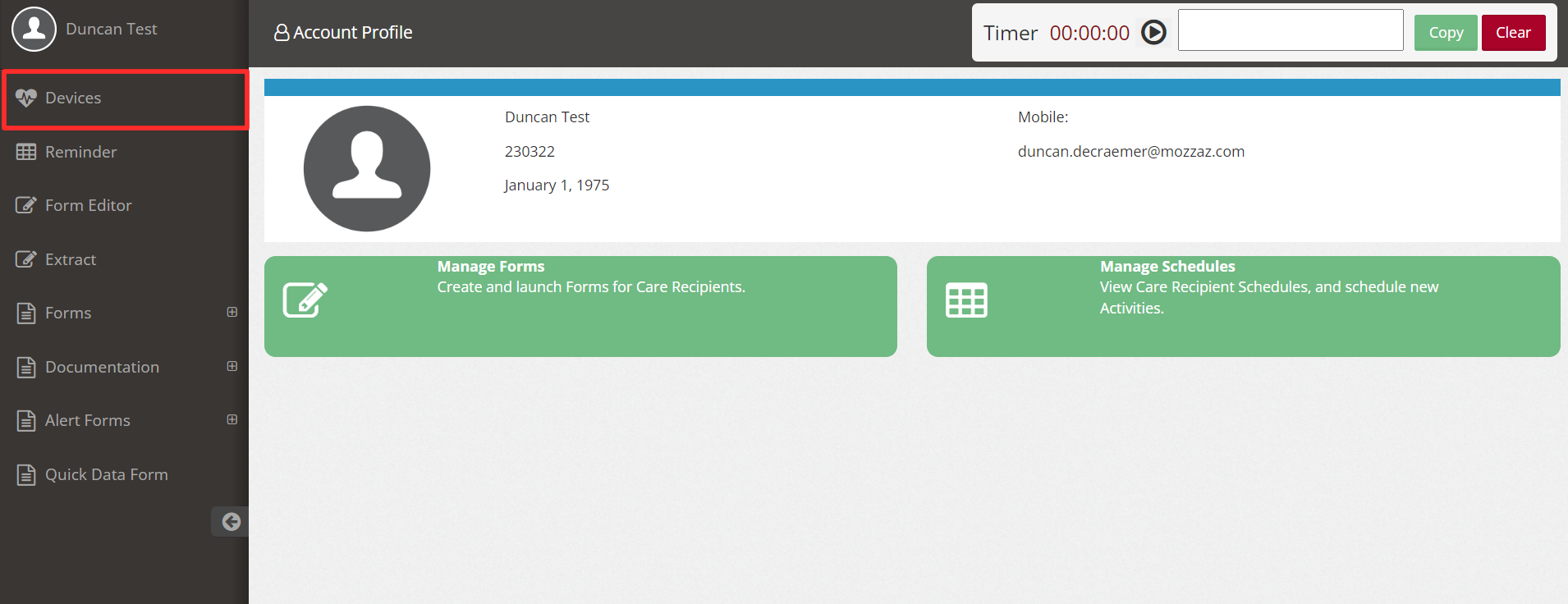
You will now be on the patient profile for the selection above - from the left-menu bar select Devices. This will open a new tab in your browser where you will see all the connected devices for this patient and the last time they have received data.
Step 3:
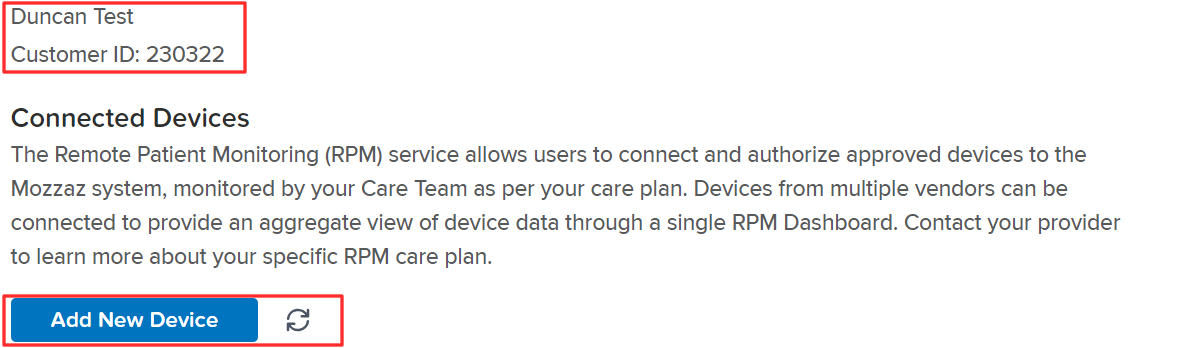
Select ‘Add New Device’ - or if a device has been connected before but is no longer connected, select ‘re-connect’ or ‘re-enroll’ - note that the name and patient ID of the profile you are adding a device to will be listed above (as seen below in our Duncan Test account)
Step 4:
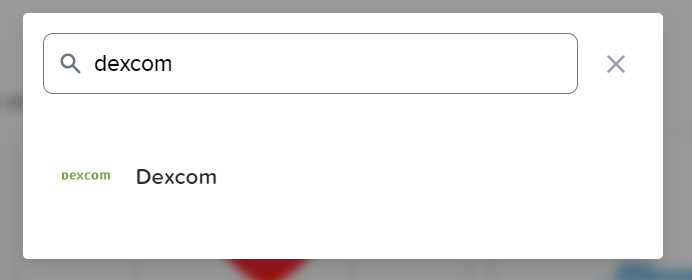
Search for your device based on the brand-name, in this case we will look at Dexcom
Step 5:
Complete the instructions for your specific device type - these will be different depending on the device.
In this case for Dexcom, after selecting the device above you will be given a unique link to be provided to the patient to finish connection. By selecting the illuminated copy button below, you can direct this link to your patient for them to finish establishing the connection.
Note that after selecting the copy button the window will close - selecting the ‘Connect’ button will open the link in a new tab.

Step 6:
After completing the connection steps instructed to the patient on the provided link above, you will be able to see the status of your connection on the patient-device home page as directed in Step 2. When the device is successfully connected it will denote ‘Connected’ as seen below.